Family Chat
Updated
Family Chat is a group chat that belongs to your family. It runs on its own private server, only people you invite can join, and your conversations are end-to-end encrypted, so the messages and photos in them can only be read on your family's own devices. Not by us, and not by anyone else.
It speaks Matrix, an open chat standard, which means you are not tied to one company's app. Your family can use whichever free Matrix app suits them: FluffyChat on a phone, Element on a laptop, or Element in the browser on a school Chromebook.
Family Chat runs tuwunel, an open source Matrix server, unmodified. We are not affiliated with or endorsed by the Matrix.org Foundation or the tuwunel project.
When does Family Chat make sense?
- Your kids are too young for Discord or WhatsApp, but they want to chat with you, their grandparents and their cousins.
- You want a family chat nobody else can read. Every room is encrypted from the moment it is created.
- Your family uses a mix of devices: iPhones, Android phones, tablets and Chromebooks.
- You don't want strangers. There is no sign-up page. Nobody joins unless you give them a one-time invite code.
Get a 7-day trial of Family Chat (runs Matrix)! 
How do I access Family Chat?
Family Chat is available:
- From your dashboard: https://your-username.elfhosted.com
- Directly: https://your-username-matrix.elfhosted.com/setup/
Signed-in users see their own URLs
The addresses above show the general pattern. Sign in and these become your personal, clickable links.
How do I use it?
Set up your own account first
Open Family Chat from your ElfHosted dashboard. It takes you to your family's setup page, which only you can see:
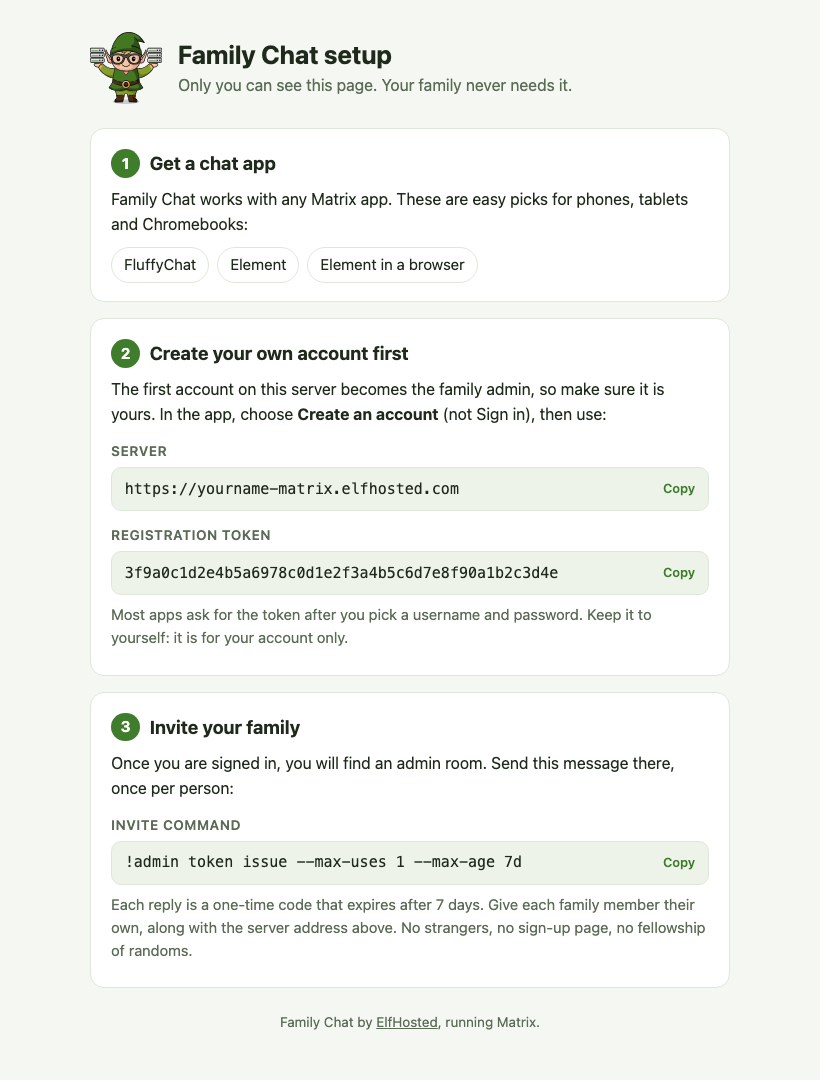
The first account created on your server becomes the family admin, so create yours before anyone else's:
- Install a Matrix app. FluffyChat is the friendliest on phones and tablets. Element works everywhere, including in a browser at app.element.io.
- Choose Create an account (not Sign in), and enter your server address from the setup page.
- Pick a username and password. The app then asks for a registration token: copy it from the setup page.
Keep that token to yourself. It is only for your own account.
Save your recovery key
Your app offers to set up a recovery key (Element calls it Secure Backup). Do it, and keep the key somewhere safe. Because your chats are end-to-end encrypted, the key is what lets you read old messages on a new phone. We can't recover it for you, which is the point.
Invite your family
Once you're signed in, you'll find an admin room. For each family member, send this message there:
!admin token issue --max-uses 1 --max-age 7d
You get back a one-time code that works once and expires after 7 days. Give each person their own code along with your server address, and they create their account the same way you did.
Resetting a password
Family Chat accounts have no email address attached, so there's no "forgot password" link. Instead, the family admin resets it. In the admin room, send:
!admin users reset-password mia
Use the person's username in place of mia. The reply contains a new password to pass on. To choose it yourself, add it at the end: !admin users reset-password mia NewPasswordHere.
A few things to know:
- Anyone still signed in stays signed in. Only the password for new sign-ins changes.
- A new password doesn't unlock old encrypted messages. On a new device, they still need their recovery key, or to verify the new sign-in from a device that's still signed in.
- If you know your password and just want to change it, do it yourself in your app's settings (Element and FluffyChat both have it under your account settings).
Make a second admin
If the family admin forgets their own password, nobody is left who can reset it. Avoid that by making a trusted adult a second admin. Send this in the admin room, using their username:
!admin users make-user-admin dad
Then either of you can reset the other's password. If you're already locked out with no second admin, ask us in Discord and a human will help.
Chromebooks
The easiest option is Element in the browser at app.element.io. In Chrome, use Install app from the address bar and it opens in its own window with notifications, like any other app. If the Chromebook allows the Play Store, the FluffyChat or Element Android apps work too.
School-managed Chromebooks sometimes block websites: if Element won't load, the school needs to allow both app.element.io and your Family Chat server address.
Your own domain
Family Chat can use a domain you own, so everyone's address looks like @mia:chat.yourfamily.com instead of the ElfHosted one. Add the custom domain addon and point a CNAME record at your ElfHosted Family Chat address.
Choose your domain before your family creates accounts
A Matrix server's name is part of every account on it and can never change. Switching to a custom domain later starts a fresh, empty Family Chat on the new name. Your old one is kept, and switching back brings it back, but accounts and chats don't move between them.
Chatting with other families (optional)
Family Chat is closed by default: it doesn't talk to any other Matrix server. If you'd like to chat with people on specific servers you trust, such as the grandparents' own Family Chat or a friend's family, list those servers and Family Chat will talk to them and nobody else.
Set the list with ElfBot (or ask Sam), and Family Chat restarts to use it:
FAMILY_CHAT_ALLOWED_SERVERS=grandma-matrix.elfhosted.com,chat.cousins.net
Use plain server names, separated by commas, up to 20 of them. Anything else, such as wildcards, keeps Family Chat closed. Both sides need to allow each other, so the other family adds your server to their list too. Remove the setting and Family Chat goes back to being closed.
What we can and can't see
Messages and files in encrypted rooms are stored only in encrypted form. We can't read them. Like any chat server, Family Chat still knows who is in which room and when messages were sent, because it has to deliver them.
Family Chat also works with
How do I get support for Family Chat?
-
For general use of Family Chat, refer to the official site or to one of the links in the resources section below.
-
For specific support re your ElfHosted configuration / account, see the ElfHosted support options!
Family Chat resources
What users say..
We're rocking some excellent  TrustPilot Reviews, and here's what some of our
usersfriends say..
The products offered are awesome! And the customer service is amazing too! I get a response to questions at 3AM!
Would have given a 10 if available. The service that was provided was outstanding, the explanations were clear and I able to understand. The pricing is beyond fair.Best decision ever was to go Elfhosted. Keep up the great works guys!!!!!!
OMG! I thought i was the master at this, i was wrong. These guys are the experts. I was looking for the ultimate setup and they more than delivered. I recommened paying for the wizard expert help.
I am absolutely stoked with my experience with ElfHosted! I paid for their Elf Wizard VIP Setup Experience, and it was worth every single penny.
My elf wizard, Waansin, was absolutely fantastic to work with. He was incredibly kind, caring, and clearly knows these products inside and out. He took the time to ensure everything was configured perfectly and got a totally awesome service up and running for me without any hassle.
The range of services ElfHosted offers is fantastic. The platform itself is fast, rock-solid stable, and delivers exactly what I want. What really gives me peace of mind is knowing how stellar their support is—I feel completely confident that if anything ever goes wrong, they will be right there to help me fix it.
If you are on the fence, definitely go for it. Huge thanks to Waansin and the team for the top-tier service!