Plex
Updated
Plex is a powerful media player with support across a large range of platforms (smart TVs, Apple TV, Roku, Fire TV, mobile, web). On ElfHosted, Plex Media Server runs in the cloud on your behalf, so you can run Plex without a home server, with Real-Debrid and Usenet pre-wired and hardware transcoding available on PlexPass.
Get a 7-day trial of ElfHosted Plex! 
Plex guides
How do I access Plex?
Plex is available:
- From your dashboard: https://your-username.elfhosted.com
- Directly: https://your-username-plex.elfhosted.com
Signed-in users see their own URLs
The addresses above show the general pattern. Sign in and these become your personal, clickable links.
Common use cases
Plex is designed for organizing and streaming your personal media collection, including:
- Personal home videos and photos: Organize and stream your family memories from any device
- Content you own: Manage media from your Blu-rays, DVDs, and digital purchases you've legally backed up
- Public domain media: Access classic films, educational content, and historical recordings
- Creative Commons content: Host CC-licensed documentaries, podcasts, and independent films
- Personal recordings: Store and stream recordings from over-the-air broadcasts (where legally permitted)
- Home media projects: Share your own creative video projects with family and friends
Users are solely responsible for ensuring all content in their Plex library complies with applicable copyright laws.
How do I use Plex?
Claim Plex Server
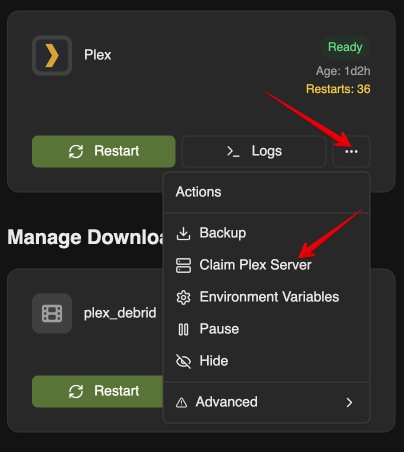
ElfBot has a special feature just for Plex instances.. use it to "claim" your Plex server. Launch ElfBot from your apps dashboard, and find the Plex app. Click "..." and "Claim Plex Server"
Go to https://www.plex.tv/claim/, login with your Plex account, and generate a claim code. Paste the code into the ElfBot UI:
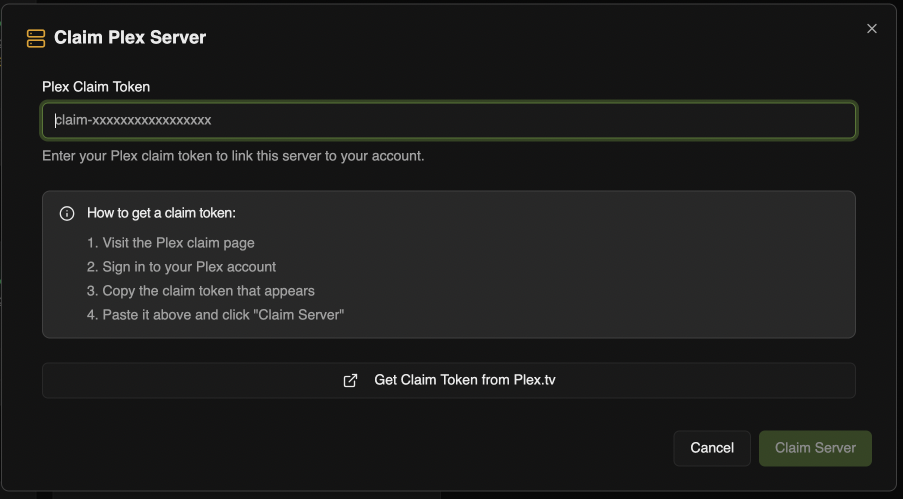
Your Plex instance will restart. After the restart is complete, and Plex is successfully claimed (takes a few minutes), you'll be prompted to setup your libraries, etc.
From media players
When you configure the Plex app in your media player, use https://<username>-plex.<domain> as the address (if a port is required, use 443). Replace <domain> with the domain in your dashboard's address (for example elfhosted.com).
Enable Hardware transcoding
If you're a PlexPass user, you can enable hardware transcoding. The hardware it uses depends on your datacenter, which you can tell from the domain in your dashboard's address:
| Domain | Datacenter | Hardware transcoding |
|---|---|---|
| elfhosted.com | Falkenstein (DE) | Intel QuickSync (QSV) |
| elfhosted.wine | Gravelines (FR) | Intel QuickSync (QSV) |
| elfhosted.cafe | Beauharnois (CA) | Intel QuickSync (QSV) |
| elfhosted.coffee | Amsterdam (NL) | NVIDIA GPU |
| elfhosted.party | Allentown (US East) | NVIDIA GPU |
| elfhosted.cc | Spokane (US West) | NVIDIA GPU |
| elfhosted.surf | Sydney (AU) | None, so direct play is the way to go |
Solutions to common issues
Claiming server / Can't add media libraries
If you find that you can't add media libraries, or even administer your Plex instance, then it probably hasn't been "claimed" yet. Use ElfBot to claim your server using a claim code from https://www.plex.tv/claim/.
To confirm whether your Plex instance has been claimed, use FileBrowser to examine config/plex//Library/Application Support/Plex Media Server/Preferences.xml. If the server has been claimed, you'll see a key PlexOnlineUsername.
Playback stalls
Plex may be trying to transcode the media, based on a detected incompatibilty with your client/app, and running into CPU limitations. For optimal performance and quality, try to direct-play media where possible. You could also try enabling hardware transcoding (above), which will improve transcoding performance.
The transcoder exited due to an error.
This error will occur if Plex tries to transcode something in an inefficient way. ElfHosted nodes run a "transcode-killer" script which terminates such transcodes for the sake of the resources shared by other users.
Here are the transcodes we'll automatically terminate:
- Transcoding from HEVC to H264
- Transcoding video without using QSV (PlexPass is required for hardware transcoding support)
- Transcoding any 4K content (even with QSV this is very resource-intensive, so 4K should only be direct-played), except on a Nazgul stack in a datacenter with NVIDIA GPUs, which has its own GPU for 4K transcoding
Database is corrupt
You trigger a database repair in Plex by setting the REPAIR_DB_ON_START environment variable to true with ElfBot, like this:
REPAIR_DB_ON_START=true
Plex will restart, and thereafter on every restart (until you set it to false), it will run through a DBRepair process which has been known to fix database issues / inconsistencies.
Plex makes its own, internal backup of its database at regular intervals, so it's possible to restore from a backed-up version of the database.
Here's the process to restore Plex to a database backup:
- "Pause" Plex, using ElfBot
- In FileBrowser, navigate to
config/plex/Library/Application Support/Plex Media Server/Plug-in Support/Databases - Rename
com.plexapp.plugins.library.dbtocom.plexapp.plugins.library.db-corrupt, and then pick the most recent, dated version ofcom.plexapp.plugins.library.db-<date>, and rename it tocom.plexapp.plugins.library.db.
When Plex starts after the pause, the backup database will be used! 
Remote Access issues
Plex may alert you that it is "Not available outside your network". This is expected, since your Plex instance is accessed via a reverse proxy rather than a direct connection.
You'll still be able to access your Plex instance remotely via apps, provided that under Settings -> Network -> Custom server access URLs, you see your ElfHosted URL defined (i.e. https://<your username>-plex.<domain>:443).
Note that when you connect to Plex externally, your port will be 443, since your traffic arrives via our reverse proxy.
Unable to save settings
Normally, Plex servers can be remotely administered using https://app.plex.tv, but users have had inconsistent results saving server settings changes this way (likely due to the reverse proxy setup). To make changes to your Plex instance, use the https://<your username>-plex.<domain> interface directly.
Get Plex token
Several app integrations require a Plex "authentication token". The simplest way to generate this token, when you need it, is to use the ElfHosted Plex Token Generator!
Autopulse (instant library updates)
Rather than waiting for Plex to detect new media via scheduled scans, you can use Autopulse to instantly update your Plex library whenever Sonarr or Radarr imports new content. See the Autopulse docs for setup instructions.
Auto-empty trash
By default Plex is configured to not automatically empty its trash. This default primarily benefits symlink-based, "Cloud Streaming" users, who would lose their entire library of content if their debrid service was disconnected for a period.
Users may opt back into automatically clearing Plex's trash by overriding an environment variable (PLEX_PREFERENCE_7 in our case), using ElfBot
PLEX_PREFERENCE_7=autoEmptyTrash=1`
Test your speed
To test your streaming speed to your Plex instance, browse to https://<your username>-plex.<domain>/speed/ to perform a speedtest.
Frequently asked questions
Can I run Plex without a home server?
Yes. On ElfHosted, Plex Media Server runs in the cloud for you, so there's no hardware to keep running at home. You claim the server with your Plex account and use it from any Plex app.
Does hosted Plex support hardware transcoding?
Yes, with Plex Pass. Falkenstein, Gravelines and Beauharnois use Intel QuickSync; Amsterdam, Allentown and Spokane use NVIDIA GPUs. Sydney has no hardware transcoding, so direct play works best there.
Why does Plex say "Not available outside your network"?
That's expected. Your Plex server is reached through a reverse proxy rather than a direct connection, so remote apps still work as long as your ElfHosted address, on port 443, is listed under Custom server access URLs.
Plex also works with
How do I get support for Plex?
-
For general use of Plex, refer to the official site or to one of the links in the resources section below.
-
For specific support re your ElfHosted configuration / account, see the ElfHosted support options!
Plex resources
Your content, your responsibility
ElfHosted provides Plex as a hosted application — we do not supply content, accounts, or third-party credentials. You are responsible for ensuring that your use of this app complies with applicable laws and our Acceptable Use Policy. If you have questions about what is or isn't permitted, please reach out — we're happy to help.
What users say..
We're rocking some excellent  TrustPilot Reviews, and here's what some of our
usersfriends say..
It's a configure-once-and-enjoy platform. Even if you want to modify anything you almost always not need to do anything else for your changes to reflect.
This was the best experience ever. I am so thankful that Elfhosted provides a white glove experience to setup your service for you. Togx90 was amazing.
I was having a UE. Luckily, I created a ticket and they got me sorted out in minutes. The courtesy and overall kindness is where it's at. They're normal people just like you and I; yet, they're more than happy to help you.
It's been a great experience overall.
There was a minor problem when I chose to migrate locations and the support team promptly solved it. Excelent customer service.